Web Fingerprinting Check-In Restriction
Web Fingerprinting is one of the layered Check-In Restrictions available on your OneTap public check-in link. It uses a trusted third-party service to uniquely identify each browser, so the same browser can only check in once — even if cookies are cleared or a different name is used.
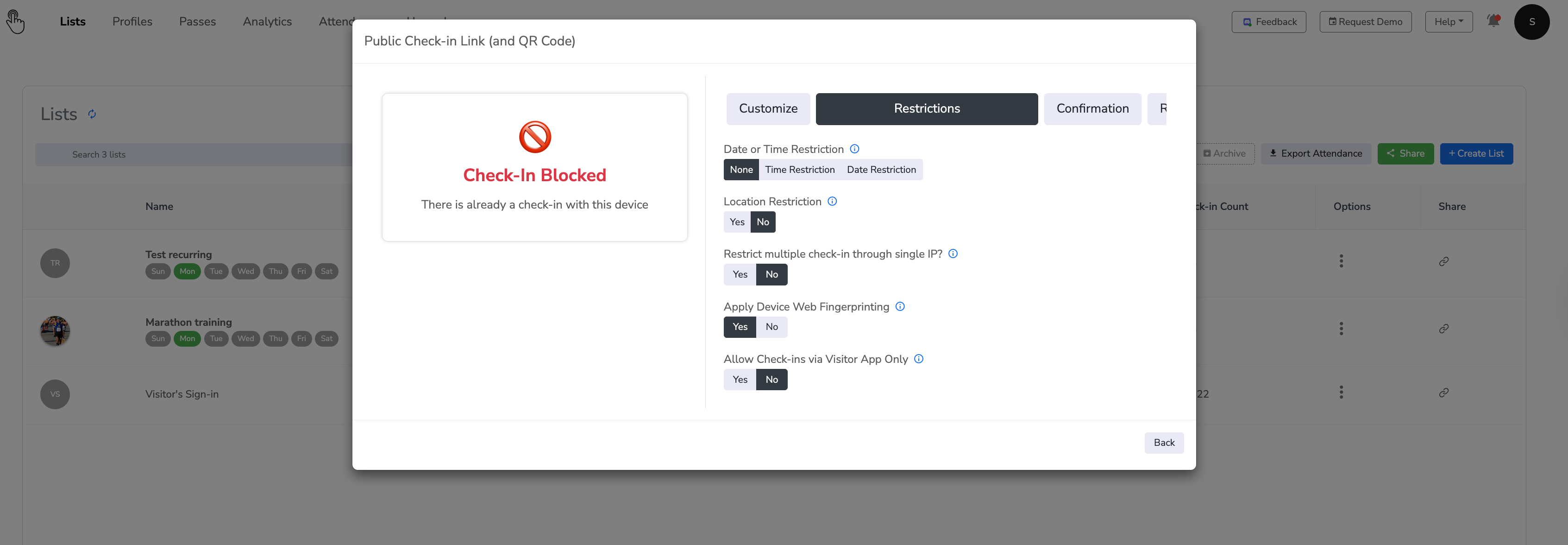
Came here from a “Check-In Blocked” message that mentioned web fingerprinting?
The fastest fix is to disable Web Fingerprinting from your dashboard. Steps are below.
How Web Fingerprinting Works
When this restriction is enabled on a public check-in link:
-
The visitor opens your check-in link in their browser.
-
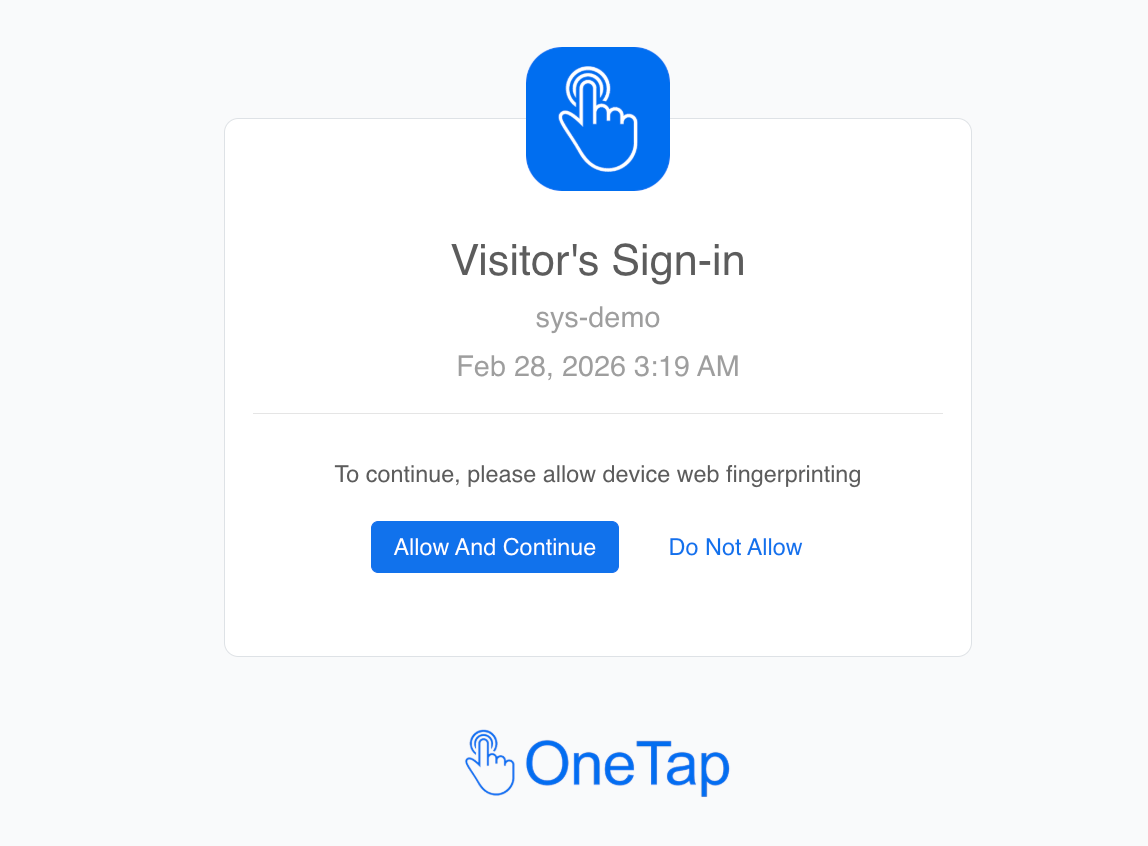
Before they can check in, they’re asked to allow device fingerprinting on a quick consent screen.
-
Once allowed, a unique signature for that browser/device is stored.
-
If the same browser tries to check in again — even after clearing cookies, even under a different name — the system blocks it.
It works alongside your other restrictions (time, date, location, IP) — each one is independent.
Use case: Ideal for classes, exams, training sessions, or events where you want to prevent the same person from checking in twice under different names from the same browser.
How to Enable Web Fingerprinting
-
Sign in to your OneTap dashboard.
-
Open the List that the public check-in link belongs to.
-
Go to the Public Check-In Link settings for that list.
-
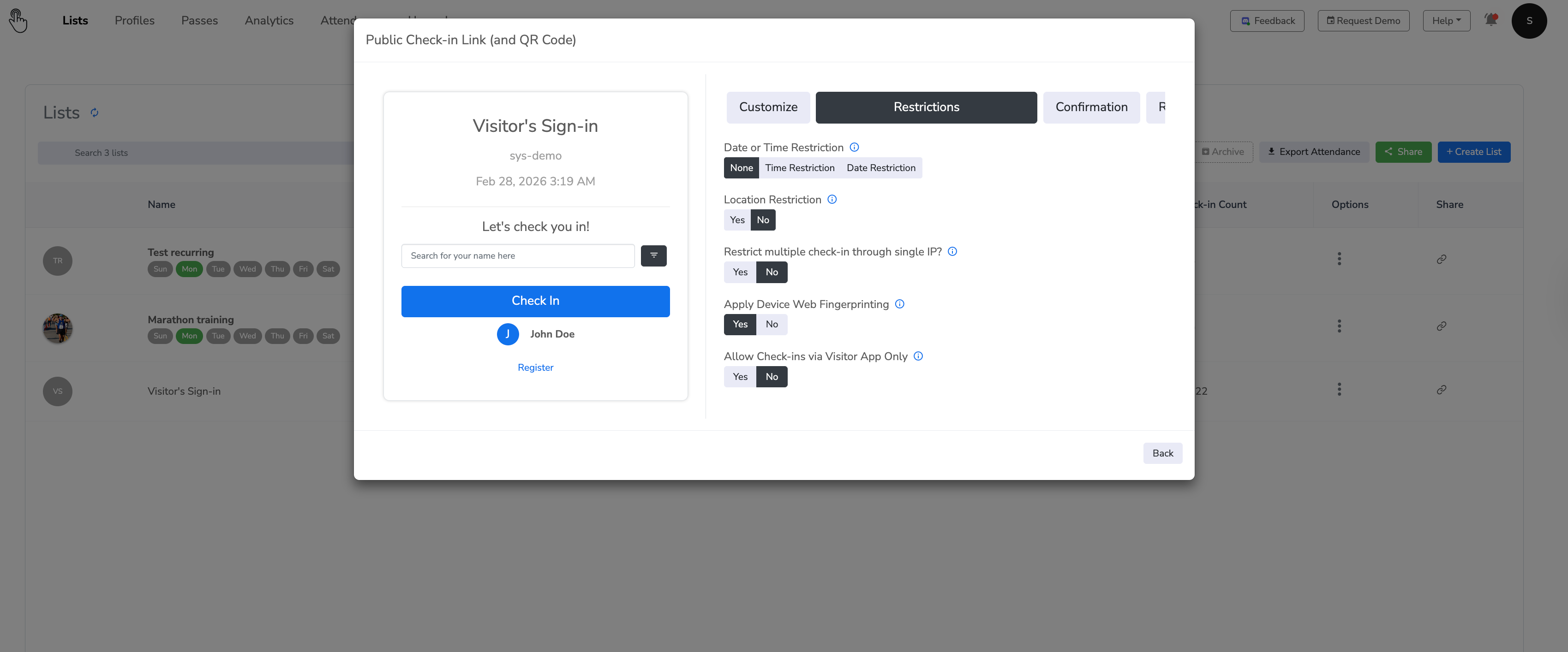
Scroll to Check-In Restrictions.
-
Toggle Web Fingerprinting ON.
That’s it — the next visitor who opens this link will go through the consent step before checking in.
[ dashboard → list → public check-in link → Settings → Check-In Restrictions panel with Web Fingerprinting toggle highlighted, set to ON ]
How to Disable Web Fingerprinting
If your visitors are seeing the “Web fingerprinting isn’t available right now” message, or you simply want to remove this layer of protection, you can turn it off in seconds:
-
Sign in to your OneTap dashboard.
-
Open the List that the affected check-in link belongs to.
-
Go to the Public Check-In Link settings for that list.
-
Scroll to Check-In Restrictions.
-
Toggle Web Fingerprinting OFF.
Once disabled, ask your visitors to reload the check-in link — they’ll be able to check in normally on the next attempt. No other settings or data are affected.
[ same Check-In Restrictions panel as above, but with Web Fingerprinting toggle set to OFF ]
Frequently Asked Questions
Why are my visitors seeing “Web fingerprinting isn’t available right now”?
This appears when the third-party fingerprinting service can’t load successfully in the visitor’s browser. Common causes:
-
A browser extension or ad-blocker is blocking the fingerprinting script.
-
A strict corporate, school, or guest network is blocking external scripts.
-
A temporary outage of the third-party service.
If this is affecting your visitors right now, the quickest path forward is to disable Web Fingerprinting using the steps above. You can always re-enable it later.
Will I lose my check-in history if I disable Web Fingerprinting?
No. All existing check-ins, profiles, and reports stay exactly as they are. Disabling only affects future check-ins on this link.
Can I keep my other restrictions (time, location, IP) and only turn off Web Fingerprinting?
Yes. Each restriction is independent — you can mix and match.
Does Web Fingerprinting collect personal information?
No. It generates a hashed identifier unique to the browser/device. It does not include name, email, location, or any other personal data about the visitor.
Will the same person be blocked across different browsers?
No — each browser has its own fingerprint. If someone uses Chrome and then Safari on the same device, those count as two different browsers. For stronger protection across devices, combine Web Fingerprinting with IP Address restriction or Visitor App verification.
Need help? Reply on this thread or reach out to support — we’re happy to help you set this up or troubleshoot.