We’ve heard this request from many of you — especially clients running meal programs, school events, and workplace check-ins where displaying a public scroll list of names is a privacy concern.
The good news: OneTap has a built-in solution called Check-In Codes which can be used on a public check-in link as well as on the kiosk that completely removes the need to show any attendees’ names. Here’s everything you need to know.
WHY THIS MATTERS
When a public check-in screen shows a scrollable list of names and photos, anyone nearby can see:
- Who is (and isn’t) in the building
- Personal identifiable information of attendees
For schools, healthcare facilities, shelters, and corporate environments, this creates a real security and privacy risk.
THE SOLUTION: Check-In Codes
Check-In Codes allow each attendee to check in by typing a unique code — no name list, no name suggestion, no photos displayed publicly. The attendee simply enters their code and proceeds straight to the next step (such as meal shift selection).
Benefits:
• Attendees cannot see each other’s names on the screen
• Prevents one person from checking in on behalf of another
• Faster and more secure for high-volume check-ins
• Works across iPad Kiosk and Public Check-In Link
HOW TO SET IT UP
Step 1 — Assign Check-In Codes to Attendees**
You can do this three ways:
• Import a spreadsheet with a “Code” column (e.g., student ID numbers, employee IDs)
• Manually edit any profile and add a code in the Code field
• Via API (Custom Plan)
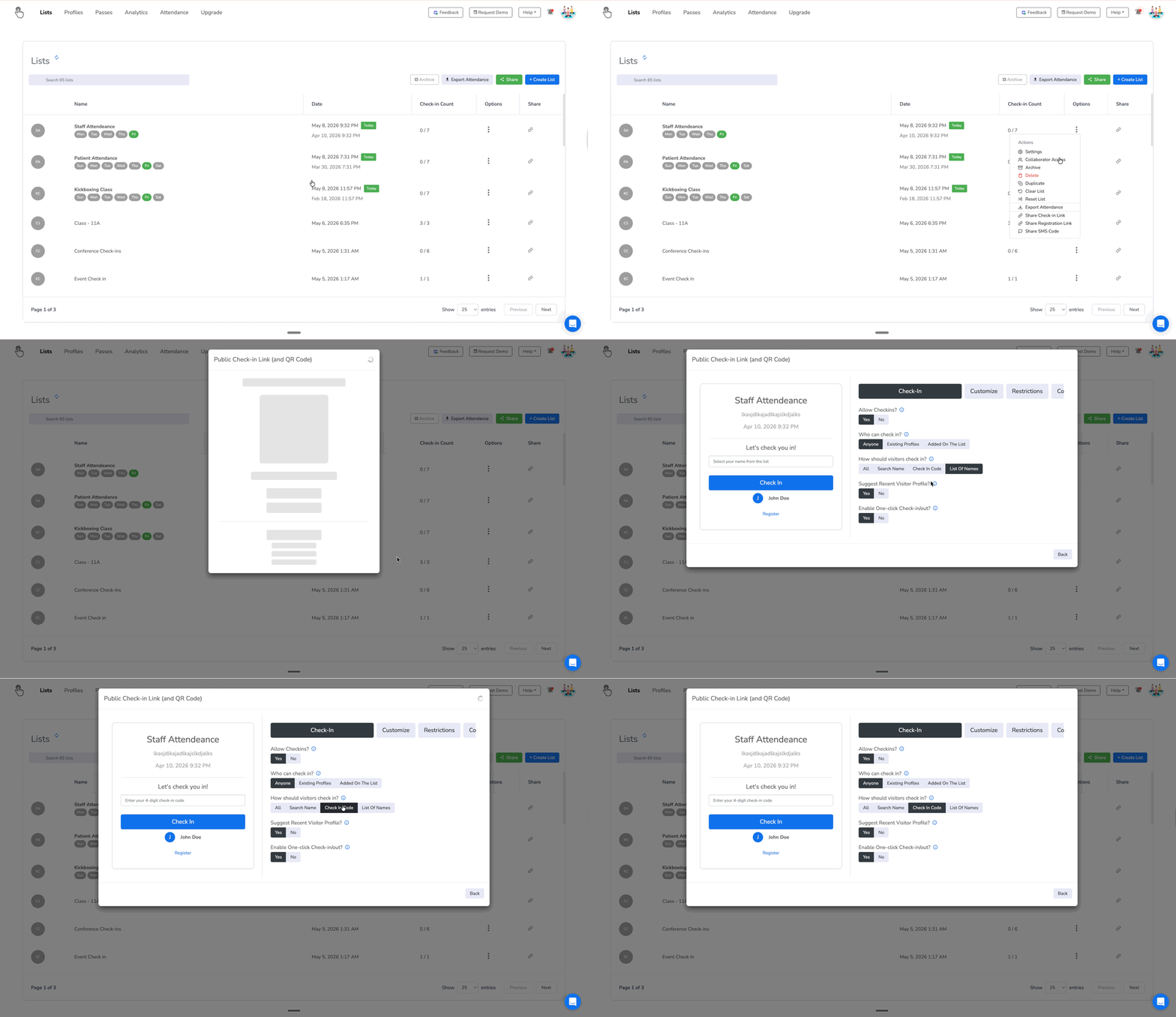
Step 2 — Enable Check-In Codes on Your Check-In Link
-
Go to your List in the dashboard
-
Click the three dots (⋯) → Actions
-
Select “Share Check-in Link”
-
Select “Settings” and change How visitors should check in to"Check-in Code"
Step 3 — Share with Attendees
Distribute the public QR code or check-in link. When an attendee arrives, they simply type their code — no scrolling list, no names visible.
Full setup guide: Check-in codes | OneTap's Help Center
Have questions about setting this up for your organization? Drop them below and our team is happy to help! 